Full Black Screen – Online Black Screen Full Screen Tool
Use this full black screen tool to turn your display into a fully black screen instantly. It is designed for monitor testing, OLED screen checks, dead pixel detection, screen cleaning, black wallpaper creation, and distraction-free viewing.
Open the black screen full screen mode, then use your keyboard:
- Press Left Arrow or Right Arrow to switch between full screen colors.
- Press F11 on Windows or use your browser fullscreen shortcut for a true black fullscreen experience.
- Press Esc to exit fullscreen mode.
- Move your mouse to show controls again.
What Is a Full Black Screen Used For?
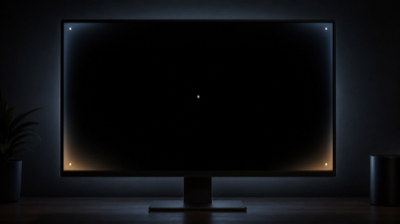
A black full screen is more useful than it looks. A pure black background can help you inspect screen defects that are hard to notice during normal use.
Common uses include:
- Checking backlight bleeding on LED/LCD monitors
- Finding bright pixels, stuck pixels, and display defects
- Testing OLED and AMOLED screens
- Cleaning dust, fingerprints, and smudges from a screen
- Creating a full black screen wallpaper
- Making a room darker at night without turning the device off
- Reducing screen distraction while studying
- Using a black image full screen as a simple background for photos, videos, or presentations
Why a Black Screen Shows Backlight Bleeding Better Than a White Screen
A black screen is usually better than a white screen for detecting backlight bleeding because the contrast is much higher.
On an LED/LCD monitor, the screen has a backlight behind the LCD panel. Even when the display shows black, the backlight is still active. If light leaks around the edges, corners, or uneven areas of the panel, it becomes much more visible against a black background.
A white screen is useful for finding dark spots, dust, yellow tint, or brightness uniformity problems. But a fully black screen is better for spotting:
- Backlight bleeding
- IPS glow
- Clouding
- Bright stuck pixels
- White dots
- Uneven black levels
- OLED uniformity issues
- Screen edge light leakage
For best results, test in a dark room. A black screen test in a bright room can hide many problems because room light reflects off the screen surface.
What Screen Problems Can a Black Screen Detect?
A black screen full test can help reveal several types of display problems.
1. Backlight Bleeding
Backlight bleeding appears as bright areas near the edges or corners of an LCD/LED screen. It often looks like white, yellow, or gray light leaking through the panel.
Small edge glow may be normal on many LCD monitors. Large bright patches that disturb movies or games in dark scenes may be a real issue.
2. IPS Glow
IPS glow is a viewing-angle related glow that appears on many IPS monitors. It often changes when you move your head or change your viewing angle.
If the glow changes significantly with your position, it is more likely IPS glow. If the bright area stays fixed in one corner, it may be backlight bleeding.
3. Dead Pixels
A dead pixel usually appears as a tiny black dot that does not emit light. A black screen alone may not reveal a dead pixel because the background is already black, but switching between black, white, red, green, and blue screens can help confirm it.
4. Stuck Pixels
A stuck pixel may remain red, green, blue, white, or another color. These are often easier to see on a black background because bright colored dots stand out clearly.
5. OLED Uniformity Problems
On OLED screens, black pixels should turn off completely. A full black screen can help you notice gray patches, uneven glow, burn-in artifacts, or areas that do not look truly black.
6. Screen Dirt and Fingerprints
A black background makes dust, fingerprints, oily marks, and smudges easier to see, especially when light reflects across the display.
Screen Testing Workflow
Use this simple workflow when testing a monitor, laptop, TV, tablet, or phone.
Step 1: Clean the Screen First
Dust can look like a dead pixel. Fingerprints can look like display defects. Before testing, gently clean the screen with a dry microfiber cloth.
Step 2: Enter Fullscreen Mode
Click the fullscreen button or use your browser fullscreen shortcut. For Windows, F11 often works in most browsers. On Mac, use the browser fullscreen button or Control + Command + F when supported.
The goal is to remove tabs, toolbars, and window borders so you get a true black screen full screen view.
Step 3: Start With the Black Screen
Look at the display from your normal viewing distance. Then move closer to inspect corners, edges, and the center.
Check for:
- Bright edges
- Uneven black areas
- White dots
- Colored dots
- Gray patches
- Cloud-like brightness
- Light leaking from corners
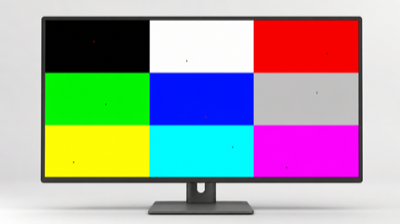
Step 4: Switch Colors With the Keyboard
Press Left Arrow or Right Arrow to switch between different full screen colors.
Recommended order:
- Black
- White
- Red
- Green
- Blue
- Gray
- Yellow
- Cyan
- Magenta
Different colors reveal different problems. A pixel may look normal on black but fail on red, green, or blue.
Step 5: Test in a Dark Room
Turn off room lights and reduce reflections. A dark room makes backlight bleeding, IPS glow, and OLED black-level problems easier to judge.
Step 6: Test at Normal Brightness and High Brightness
Test once at your normal brightness level, then again at 70–100% brightness. High brightness makes backlight bleeding easier to see, but it may also exaggerate issues that are not visible during normal use.
Step 7: Compare With Real Content
After testing full screen colors, watch a dark movie scene, open a dark game, or display a black photo. If the issue is only visible during extreme testing but not during real use, it may not affect daily experience.
Testing Standards and How to Judge the Results
There is no single universal pass/fail standard for every screen, because OLED, LCD, IPS, VA, mini-LED, laptop panels, TVs, and phones behave differently. But you can use these practical guidelines.
Usually Acceptable
These are often normal:
- Very slight edge glow on LCD monitors
- Mild IPS glow that changes with viewing angle
- Minor brightness variation only visible in a dark room
- Small uniformity differences that do not appear in real content
Potential Problem
These may deserve attention:
- One corner is much brighter than the others
- Bright patches are visible during movies or games
- A white, red, green, or blue dot stays in the same position
- A black dot appears on white, red, green, and blue screens
- OLED black is not truly black in a dark room
- Burn-in patterns are visible on solid colors
- The screen looks dirty even after cleaning
Strong Reason to Contact Support or Return the Device
Consider warranty service, exchange, or return if:
- You see multiple stuck or dead pixels on a new display
- A bright pixel is near the center of the screen
- Backlight bleeding is obvious in normal use
- OLED burn-in is visible during normal content
- The defect appears in photos, videos, games, or work tasks
- The issue bothers you during normal use, not just during extreme testing
Always check the return window and warranty policy quickly. Many display problems are easier to resolve while the device is still new.
What to Do If You Find a Problem
If You Find Dust or Fingerprints
Clean the screen carefully. Use a microfiber cloth and avoid pressing hard.
If You Find a Bright Colored Pixel
It may be a stuck pixel. Try a stuck pixel fixer or a color cycling tool for 10–30 minutes. There is no guarantee, but some stuck pixels recover.
If You Find a Black Dot
It may be a dead pixel, dust, or dirt. Clean the screen first. Then test on white, red, green, and blue backgrounds. If the dot stays in the same place across all colors, it may be a dead pixel.
If You Find Backlight Bleeding
Reduce screen brightness and compare the issue during real use. If it is visible in movies, games, or normal work, consider an exchange or warranty claim.
If You Find OLED Burn-In
Display different solid colors and gray backgrounds. If a logo, keyboard, navigation bar, or UI pattern remains visible, it may be burn-in or image retention. Temporary image retention may fade, but permanent burn-in usually requires panel replacement.
Dead Pixel vs Stuck Pixel
Many websites confuse dead pixels and stuck pixels. They are not the same.
Dead Pixel
A dead pixel usually does not emit light. It often appears as a tiny black dot.
Typical signs:
- Looks black on white background
- Does not change color
- Stays in the same position
- Usually caused by a hardware defect
- Usually cannot be repaired by a website
Stuck Pixel
A stuck pixel is usually stuck on one color.
Typical signs:
- Appears red, green, blue, white, or another bright color
- Is visible on a black screen
- May disappear on some backgrounds
- May sometimes recover after color cycling
- Has a better chance of being fixed than a dead pixel
Quick Way to Tell the Difference
Use the keyboard to switch between black, white, red, green, and blue full screen colors.
- If the pixel is always black, it may be dead.
- If the pixel is always bright or colored, it may be stuck.
- If it disappears on some colors but appears on others, it may be a subpixel issue.
Why Dark Room Testing Is More Accurate
A dark room is better for black screen testing because it reduces reflections and improves contrast.
In a bright room, your screen reflects windows, lamps, walls, and objects. These reflections can hide backlight bleeding or make normal reflections look like screen defects.
For better results:
- Turn off room lights
- Close curtains
- Avoid direct light on the screen
- Set brightness to your normal level first
- Then test again at high brightness
- View the screen from your normal sitting position
- Take a photo only as a reference, not as final proof
Phone cameras often exaggerate backlight bleeding and OLED glow. Trust what you see with your eyes during real use more than an overexposed camera photo.
Capture Any Size Black Image for Wallpaper or Other Uses
A full black screen can also be used to create a black image, black background, or black wallpaper.
You can take a screenshot of the black screen and crop it to any size you need.
On Mac
Use:
- Command + Shift + 3 for full screen screenshot
- Command + Shift + 4 for selected area
- Command + Shift + 5 for screenshot options
You can use the captured image as a black wallpaper, presentation background, or design asset.
On Windows
Use:
- Print Screen
- Windows + Shift + S
- Snipping Tool
- Windows screenshot shortcuts
After capturing, save the image as PNG or JPG and set it as your desktop wallpaper.
On iPhone
Open the black screen page, rotate or zoom as needed, then take a screenshot using your iPhone screenshot shortcut. Crop the image and set it as your wallpaper.
A full black screen wallpaper is useful for OLED phones, minimalist desktops, and distraction-free home screens.
Full Black Screen vs Black Screen Video
Some users search for black screen videos, but a web-based black screen fullscreen tool is often more convenient.
Advantages of This Tool
- No video loading time
- No compression artifacts
- No video controls on screen
- No timeline bar
- No audio
- Works instantly in the browser
- Can switch colors with keyboard
- Better for monitor testing
- Easier to use as a black image full screen
When a Black Screen Video May Be Useful
A black video may be useful when you need a fixed duration, background playback, or video editing material.
But for screen testing, cleaning, OLED checks, and quick fullscreen use, a browser-based black fullscreen tool is usually faster and cleaner.
Some searches such as black souls fullscreen, vlc full screen yet video has black boarder fix, or jiohotstar movies not playing in full are related to fullscreen video display problems, not screen testing. If your video has black borders, the cause is usually aspect ratio mismatch, player settings, browser zoom, or the original video format. This black screen tool cannot fix a streaming app or VLC aspect ratio issue, but it can help confirm whether your display itself is working normally in fullscreen mode.
Use Fullscreen Black Mode to Clean Your Screen
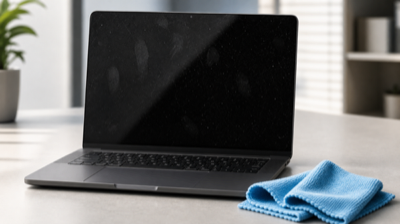
A black screen full screen background makes dust and smudges easier to see. This is especially helpful for glossy screens, laptops, tablets, and phones.
Best Cleaning Cloth
Use a clean microfiber cloth. Microfiber is soft and less likely to scratch the screen.
Avoid:
- Paper towels
- Tissues
- Rough cloth
- Dirty towels
- Abrasive pads
Screen Cleaning Tips
- Turn off or darken the screen before cleaning
- Use the full black screen to reveal dust and fingerprints
- Wipe gently in small circular motions
- Do not press hard on LCD panels
- For stubborn marks, lightly dampen the cloth with water or screen-safe cleaner
- Never spray liquid directly onto the screen
- Avoid ammonia, alcohol-heavy cleaners, and harsh chemicals unless the manufacturer says they are safe
- Let the screen dry before closing a laptop lid
After cleaning, use the black screen again to check whether smudges remain.
LED/LCD vs OLED: Why Display Type Matters
Different screen types behave differently during black screen testing.
LED/LCD Displays
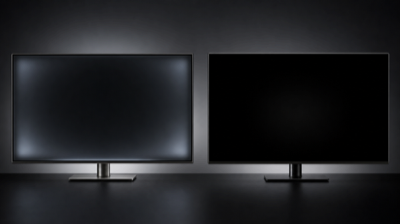
Most “LED monitors” are actually LCD displays with LED backlighting. The pixels do not create their own light. A backlight shines through the LCD layer.
When showing black:
- The backlight is still on
- Black may look dark gray
- Backlight bleeding may appear
- IPS glow may be visible
- Brightness uniformity may vary
A full black screen is very useful for detecting backlight bleeding on LED/LCD monitors.
OLED Displays
OLED pixels produce their own light. When showing pure black, individual pixels can turn off.
When showing black:
- Black areas can be truly black
- Power use may be lower on dark content
- Backlight bleeding should not exist because there is no backlight
- Burn-in or image retention may become easier to notice
- Uniformity problems may appear as gray patches or uneven glow
This is why OLED is especially suitable for black screen testing. A perfect black screen should look almost like the device is off in a dark room.
OLED Testing Workflow and Judgment Standard
Use this workflow for OLED phones, OLED laptops, OLED TVs, and AMOLED screens.
Step 1: Enter Full Black Screen
Open the black screen full screen mode in a dark room.
Step 2: Increase Brightness
Test at normal brightness first, then increase brightness. OLED black should still remain black because black pixels are turned off.
Step 3: Look for Uneven Glow
Check whether any area appears gray, cloudy, greenish, reddish, or uneven.
Step 4: Switch to Gray
Gray screens are often better than pure black for detecting OLED uniformity problems. Use dark gray and mid-gray if available.
Step 5: Check for Burn-In
Switch between black, white, red, green, blue, and gray screens. Look for faint logos, navigation bars, keyboard shapes, status bars, or app interface marks.
How to Judge OLED Results
Usually acceptable:
- Perfect black in a dark room
- Slight color tint only on gray backgrounds
- No visible logo or UI pattern during normal use
Potential issue:
- Gray patches visible on solid colors
- UI patterns visible on multiple colors
- Black does not look black in a dark room
- Bright or colored pixels remain fixed
- Burn-in is visible during normal content
Why Phone OLED and LCD Screens Look Different
Phones use different display technologies. A black screen may look very different depending on whether the phone uses OLED/AMOLED or LCD.
OLED / AMOLED Phones
On OLED and AMOLED phones:
- Black pixels can turn off
- Full black wallpaper may save power
- Black looks deeper
- Contrast is very high
- Burn-in risk is higher if static content stays for long periods
LCD Phones
On LCD phones:
- A backlight is always active
- Black may look gray in a dark room
- Backlight bleeding can appear
- Power savings from black wallpaper are usually much smaller
- Burn-in is less common than OLED, though image retention can still happen
How to Tell What Type of Screen Your Phone Has
You can check your phone’s display type by:
- Looking up the official specifications
- Searching the phone model plus “display type”
- Checking whether the specs say OLED, AMOLED, Super AMOLED, LTPO OLED, IPS LCD, or TFT LCD
- Opening a full black screen in a dark room
A quick visual clue: if the black screen looks like the phone is almost completely off, it is likely OLED or AMOLED. If it looks dark gray with visible backlight, it is likely LCD. This is not a perfect test, but it is a useful clue.
Other Practical Uses for a Full Black Screen
A full black screen is not only for testing.
Save Power on OLED Devices
On OLED and AMOLED devices, black pixels may use less power because they can turn off. This makes a black wallpaper or black background useful for some phones and laptops.
Keep the Room Dark at Night
A fully black screen can make a device look almost turned off while keeping the browser or page active. This is useful when you want music, audio, timers, or background tasks to continue without lighting up the room.
Reduce Distraction While Studying
If you need a laptop open but do not want a bright screen pulling your attention, a black screen full screen page can reduce visual distraction.
Use as a Simple Photo or Video Background
A black background can be useful for product photos, video calls, presentations, or quick visual contrast.
Hide Screen Content Temporarily
If you want a blank display during a break, a black full screen tool is faster than changing settings or closing apps.
Check Browser Fullscreen Behavior
If a video player, game, or website does not appear fullscreen correctly, this page can help confirm whether your browser fullscreen mode works normally.
Extra Testing Tips
- Clean the display before judging pixels.
- Test at both normal and high brightness.
- Do not judge backlight bleeding only from a phone photo.
- Use real movies or games after the test to decide whether the issue matters.
- Test from your normal viewing angle.
- For laptops, test while plugged in and on battery because brightness behavior may change.
- For OLED, test both pure black and dark gray.
- For external monitors, check cable connection and graphics settings if colors look wrong.
- If a new display has defects, document them with photos and contact the seller quickly.
FAQ
What is a full black screen?
A full black screen is a page or image that fills your entire display with pure black. It is useful for screen testing, OLED checks, cleaning, and creating black wallpaper.
How do I make my screen fully black?
Open this page, click fullscreen, or press F11 if your browser supports it. You can then use the black screen full screen mode for testing or cleaning.
Can a black screen detect dead pixels?
A black screen is best for finding bright or stuck pixels. To detect dead pixels, switch between black, white, red, green, and blue screens.
Why does my LCD screen look gray instead of black?
LCD screens use a backlight. Even when showing black, the backlight may still shine through, making black look gray in a dark room.
Why does my OLED screen look completely black?
OLED pixels can turn off individually when displaying black. That is why a full black OLED screen can look like the device is turned off.
Can I use this as a full black screen wallpaper?
Yes. You can take a screenshot and crop it to create a full black screen wallpaper for Mac, Windows, iPhone, Android, or tablets.
Is a black screen better than a white screen for testing?
It depends on the problem. Black is better for backlight bleeding, OLED black levels, and bright stuck pixels. White is better for dust, dark pixels, and brightness uniformity.
Can this fix video black borders?
No. If VLC, a streaming service, or a movie does not fill the screen, the issue is usually aspect ratio, zoom, player settings, or the video itself. This tool only helps test whether your display and browser fullscreen mode work correctly.
Is this safe for my screen?
Yes. Showing a black screen is safe for normal use. Avoid leaving static high-brightness images on OLED screens for very long periods, but a pure black screen is generally one of the safest static screens for OLED.
Final Advice
Use this full black screen tool as a quick first step for screen inspection. A black screen helps reveal many problems, but it should not be the only test. For a complete result, switch between multiple full screen colors, test in a dark room, clean the screen first, and compare what you see with real content.
If a defect is visible during normal use and your device is still under warranty or within the return period, contact the seller or manufacturer as soon as possible.